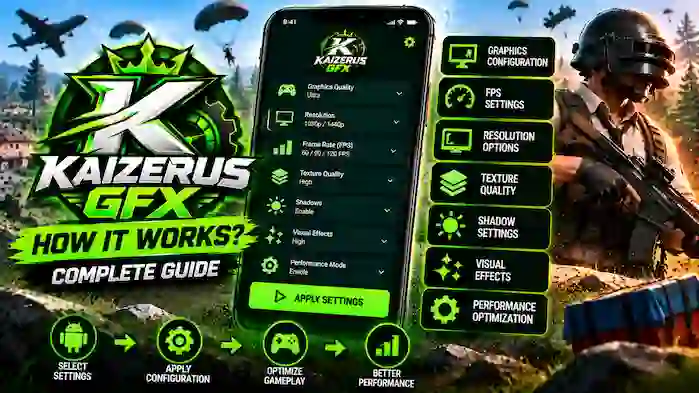
If you are wondering how Kaizerus GFX works, the basic idea is that it is associated with graphics configuration for Android gaming. A GFX tool can provide settings that allow users to adjust supported graphics parameters instead of relying entirely on a game’s default configuration.
The actual behavior depends on the Kaizerus GFX features version, Android device, game version, hardware capabilities, and the graphics options supported by the gaming environment.
How Does Kaizerus GFX Work?
Kaizerus GFX works by providing access to graphics-related configuration options that can influence how a supported game renders visual content.
Depending on the version, these settings may involve:
- Resolution
- Frame rate
- Graphics quality
- Texture quality
- Shadow quality
- Visual effects
- Rendering options
- Performance-related settings
The purpose is generally to help users configure available graphics options according to their device rather than simply selecting the highest settings.
How Kaizerus GFX Interacts With Graphics Settings
A mobile game uses the device’s CPU, GPU, RAM, display, and software environment to render gameplay.
A graphics configuration tool operates around the settings that control this rendering process.
For example, changing resolution can affect the amount of visual information that the GPU needs to process. Similarly, changing graphics quality or visual effects can alter the workload placed on the device.
The result depends on whether the selected settings are actually supported by the game and device.
How Kaizerus GFX Handles Resolution
Resolution determines how much visual detail is rendered on the screen.
A higher resolution can make images appear sharper and more detailed, but it can also require additional graphics processing power.
A lower resolution may reduce the graphics workload and can be useful when prioritizing performance.
The appropriate resolution depends on the device and the game. There is no single resolution that is ideal for every Android phone.
How Kaizerus GFX Handles FPS
FPS means frames per second. It describes how frequently new frames are rendered during gameplay.
A higher frame rate can make movement appear smoother, but the device must be capable of producing those frames consistently.
For example, selecting a high FPS target on hardware that cannot maintain it may not produce the expected result.
Kaizerus GFX may provide frame-rate-related configuration where supported, but it cannot guarantee a particular FPS level.
How Graphics Quality Affects Performance
Graphics quality controls can affect how much detail the game renders.
Higher-quality settings may increase the workload on the GPU and can require additional memory and processing resources.
Lower settings can reduce that workload and may be useful for devices with more limited hardware.
A balanced configuration often makes more sense than automatically choosing the highest available quality.
How Texture Settings Work
Textures control the detail and appearance of surfaces and objects within a game.
Higher texture quality can make environments look more detailed, but it can also require more graphics memory.
Devices with limited RAM or GPU resources may perform better with moderate texture settings.
How Shadow Settings Work
Shadows add depth and visual realism to game environments.
Rendering detailed shadows requires additional graphics processing. Reducing shadow quality can therefore reduce some of the GPU workload.
If visual quality is important, users may keep shadows higher. If performance is the priority, lower shadow settings may be more appropriate.
How Visual Effects Work
Visual effects can include lighting, particles, reflections, and other graphical elements.
These effects can improve the visual presentation of a game but may also increase processing requirements.
Kaizerus GFX-related configuration can help users understand or adjust supported effects, depending on the application and game environment.
How Kaizerus GFX Uses Device Hardware
The tool does not replace the hardware inside an Android phone. Actual gaming performance remains dependent on the device.
CPU
The CPU handles game logic, system processes, and many tasks that support gameplay.
GPU
The GPU is responsible for much of the graphical rendering workload.
RAM
Available RAM helps the device manage the game and other running processes.
Storage
Available storage is important for installing applications and maintaining normal device operation.
Display
The display’s resolution and refresh rate can influence how visual output is presented.
Temperature
Long gaming sessions can increase device temperature. Thermal management can affect performance when the device becomes too warm.
How Kaizerus GFX Can Affect Gaming Configuration
A GFX tool is primarily useful for configuration. It does not magically add processing power or turn low-end hardware into high-end hardware.
For example, if a phone has limited GPU performance, selecting extremely demanding graphics settings may cause instability rather than improving the experience.
A more practical approach is to select settings that the device can maintain consistently.
How Kaizerus GFX Works on Different Devices
The same configuration can produce different results on different Android phones.
Entry-Level Devices
Lower-end devices may need lower graphics quality, moderate resolution, and conservative FPS targets.
Mid-Range Devices
Mid-range hardware can often support a broader range of graphics configurations, depending on the game.
Gaming Phones
Gaming phones may have stronger GPUs, CPUs, cooling systems, and high-refresh-rate displays, allowing them to handle more demanding configurations.
Older Devices
Older devices may have limitations related to Android versions, hardware, RAM, and graphics capabilities.
How Kaizerus GFX Works With Game Versions
Game updates can change graphics systems, available settings, and compatibility.
This means that a configuration that worked previously may behave differently after a major game update.
When troubleshooting a problem, check both the Kaizerus GFX version and the current game version.
Does Kaizerus GFX Automatically Improve FPS?
Not necessarily.
A graphics tool can provide configuration options, but actual FPS depends on the device and game.
Factors include:
- CPU performance
- GPU performance
- RAM
- Game optimization
- Graphics settings
- Resolution
- Device temperature
- Background applications
- Android version
Therefore, users should avoid treating a graphics configuration tool as a guaranteed FPS booster.
Does Kaizerus GFX Reduce Lag?
It may help users adjust demanding graphics settings in environments where those settings are supported, but it cannot guarantee that all types of lag will disappear.
Gaming lag can have different causes.
Graphics-Related Lag
This can be connected to GPU workload, graphics quality, resolution, or frame-rate stability.
Network Lag
Internet latency and connection quality are separate from graphics performance.
Device-Related Slowdowns
Limited RAM, storage issues, background applications, or thermal throttling can also affect gameplay.
Understanding the source of the problem is important before changing graphics settings.
How to Use Kaizerus GFX Settings
A careful configuration process can help avoid unnecessary problems.
1. Check Your Device
Understand your Android version, processor, GPU, RAM, and display capabilities.
2. Check the Game
Look at the game’s existing graphics and FPS options first.
3. Start With Moderate Settings
Avoid immediately selecting the highest available configuration.
4. Change One Setting
Adjust one option at a time so you can identify its effect.
5. Test Gameplay
Check smoothness, responsiveness, visual quality, and device temperature.
6. Adjust Again
If performance is unstable, reduce demanding settings.
7. Restore Defaults When Necessary
If a configuration creates problems, return to a known stable configuration.
How Kaizerus GFX APK Works
Users searching for the Kaizerus GFX APK are usually looking for the Android package used to install the application.
The APK itself is simply the installation package. Its actual functionality depends on the application version and the environment in which it is used.
Before installing an APK, verify:
- Version number
- Android requirements
- Source
- File information
- Package information where available
- Permissions
- Security status
Different files can use similar names, so verify the exact APK before installation.
Is Kaizerus GFX Safe to Use?
Safety depends on the specific APK and source.
If you obtain the application from an unfamiliar source, review the file carefully before installation.
Verify the Source
Look for clear information about the application and its version.
Check Permissions
Make sure requested permissions are reasonable for the application’s expected purpose.
Scan the APK
Use a reputable security scanner before installing an unfamiliar file.
Avoid Suspicious Modified Versions
Modified APKs can contain changes that are not part of the expected software.
Keep Security Protections Enabled
Do not disable important Android security features simply to install an APK.
Common Problems With Kaizerus GFX
Settings Do Not Apply
The selected setting may not be supported by the game, device, or current application version.
FPS Does Not Increase
The device may already be limited by its CPU, GPU, temperature, or game optimization.
Game Crashes
Try returning to less demanding graphics settings and check version compatibility.
APK Does Not Install
Check Android compatibility, available storage, file integrity, and conflicts with another installed version.
Performance Becomes Worse
High graphics settings can increase hardware workload. Reduce demanding settings and test again.
Frequently Asked Questions
How does Kaizerus GFX work?
Kaizerus GFX is associated with graphics configuration settings that can influence supported gaming parameters such as resolution, FPS, graphics quality, and visual effects.
Does Kaizerus GFX really boost FPS?
It may provide FPS-related configuration options, but it cannot guarantee an FPS increase. Actual performance depends on the device, game, hardware, and settings.
Can Kaizerus GFX reduce game lag?
It may help with graphics-related performance issues by allowing supported settings to be adjusted. It cannot eliminate network latency or every type of lag.
Does Kaizerus GFX work on every Android phone?
No. Compatibility depends on Android version, hardware, application version, game version, and supported settings.
Can I use maximum graphics settings?
You can only use demanding settings effectively if the device and game can maintain them. Maximum settings are not always the best choice for stable gameplay.
Why does Kaizerus GFX work differently on two phones?
Different CPUs, GPUs, RAM capacities, Android versions, displays, cooling systems, and game configurations can produce different results.
Is Kaizerus GFX an FPS booster?
It is better understood as a graphics configuration tool rather than a guaranteed FPS booster. Its actual effect depends on the settings and hardware available.
Conclusion
Understanding how Kaizerus GFX works starts with understanding graphics configuration. The tool is associated with settings such as resolution, frame rate, graphics quality, textures, shadows, and visual effects, which can influence the workload placed on an Android device.
However, Kaizerus GFX does not replace the phone’s hardware and cannot guarantee higher FPS or eliminate every type of lag. The actual result depends on the game, device hardware, Android version, application version, temperature, and selected settings.
For the best results, start with moderate configurations, change settings gradually, and test each adjustment. If you are downloading the application as an APK, also verify the source, version, compatibility, permissions, and security before installation.
1 thought on “How Does Kaizerus GFX Work? Complete Guide”